Features
The core of the Days-Off Scheduler iPhone app is a workforce allocation and personnel assignment heuristic algorithm. This algorithm calculates optimal schedules for employees' days off while ensuring staffing requirements are met. By scheduling days off, the app effectively determines how many employees need to be present each day of the week. It generates a cyclic, optimal schedule one week at a time.
For the algorithm to work, the following constraints must be satisfied:
-
The required number of employees per day (from Sunday to Saturday).
-
The allocation of weekends off for each employee (a specified number of weekends is guaranteed).
-
Each employee works exactly 5 out of 7 days, with no more than 6 consecutive working days.
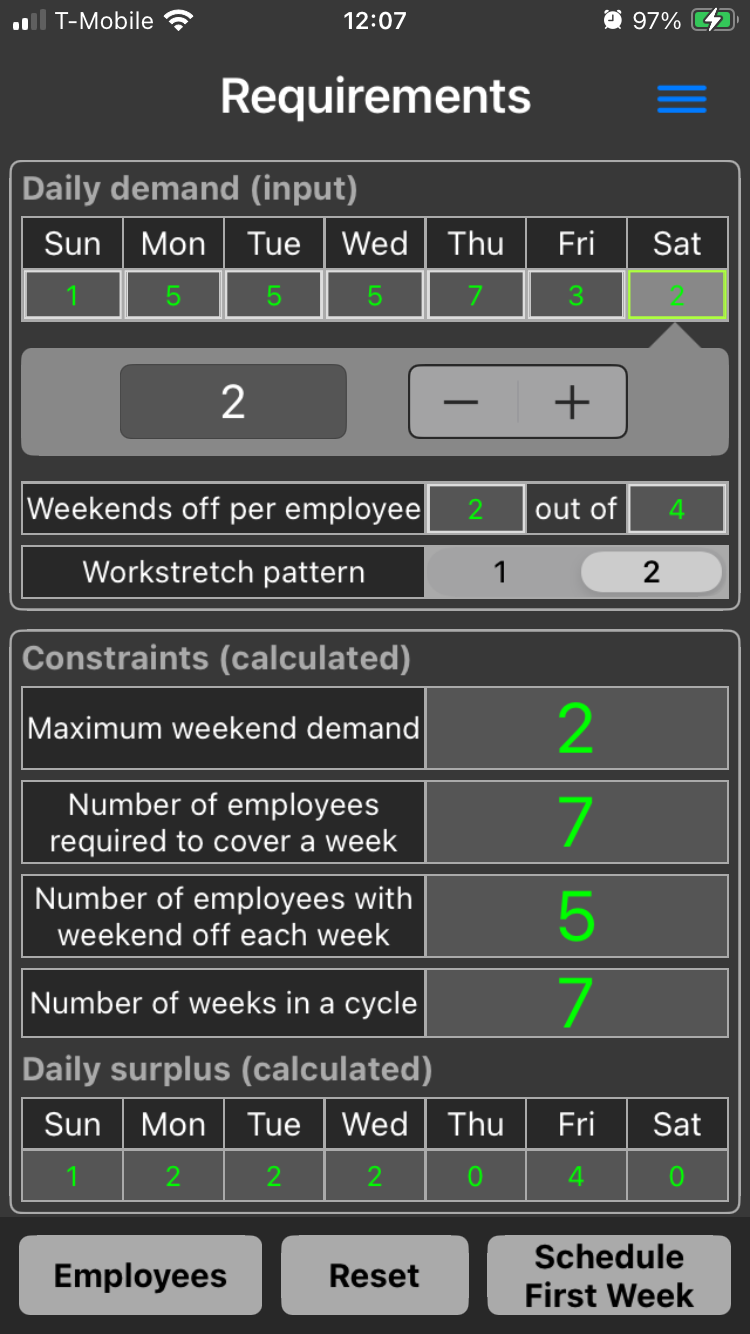
The daily employee demand and weekends off per employee are entered by the user, along with the work stretch pattern (1 or 2). The constraints and employee surplus are calculated and displayed for the user's reference. Additionally, the number of weeks in a cycle is also displayed.
Enter the number of employees for each day of the week and the number of weekends off per employee in the 'Daily Demand' section on the 'Requirements' view. To do this, tap a rectangular box to select a day or weekends off per employee. You can adjust the number by tapping the '+' or '-' buttons or by tapping the text field in the “bubble” with an arrow pointing to the selected box.Tapping the text field allows you to enter the number using the number pad.
Initially, all numbers are set to zero, except for the second weekends-off box. When entering weekends off per employee, the number in the second box must always be greater than the number in the first box. If a mistake is made, the app will automatically correct the user's input, and the corrected number will be displayed in yellow until the user taps another button or navigates to a different view and then returns to the 'Requirements' view.
The same behavior applies to the daily employee demand boxes. If the limit is reached, the maximum number of employees will turn yellow.
Each employee must be given n out of every N weekends off.
Below are key considerations for selecting the number of weekends off in typical scheduling practices.
In industries like healthcare, retail, or manufacturing, where weekend coverage is essential, common patterns include:
- Every other weekend off (n=1, N=2)
- One in three weekends off (n=1, N=3)
- One in four weekends off (n=1, N=4)
A reasonable maximum for N is around 4 to 6, meaning employees get at least one weekend off every 4 to 6 weeks. Going beyond that starts to negatively impact work-life balance.
For realistic and sustainable scheduling:
- Maximum N ≈ 4 to 6 (employees get 8-13 weekends off per year)
- Preferred N ≈ 2 to 3 (employees get 17-26 weekends off per year)
You can also specify the work stretch pattern, which adjusts the length of the work stretch and the distribution of the surplus. The pattern depends on the numbers entered in the 'Daily Demand' section. In some cases, selecting either pattern may generate the same schedule.
-
The first pattern constructs workdays by selecting the day with the highest value of daily employee surplus (e.g., DAY 1), then choosing the first available surplus value from another day (e.g., DAY 2) that is not equal to DAY 1 and has a surplus greater than zero.
-
The second pattern also starts with the day with the highest daily employee surplus (e.g., DAY 1) but then selects the highest available surplus value from another day (e.g., DAY 2) that is not equal to DAY 1 and has a surplus greater than zero.
There are four tiers available in the app: one free tier and three paid subscription tiers. The free tier allows you to enter up to 10 employees, while the paid tiers allow you to enter up to 50, 200, and 1,000 employees, respectively. There is no tier-specific limit for weekends off per employee; this limit is set to 10 for all tiers.
The values in the 'Constraints' section are calculated automatically for your reference. The values for 'Number of employees required to cover a week' and 'Number of employees with weekends off each week' may appear in red if the requirements for schedule creation are invalid.
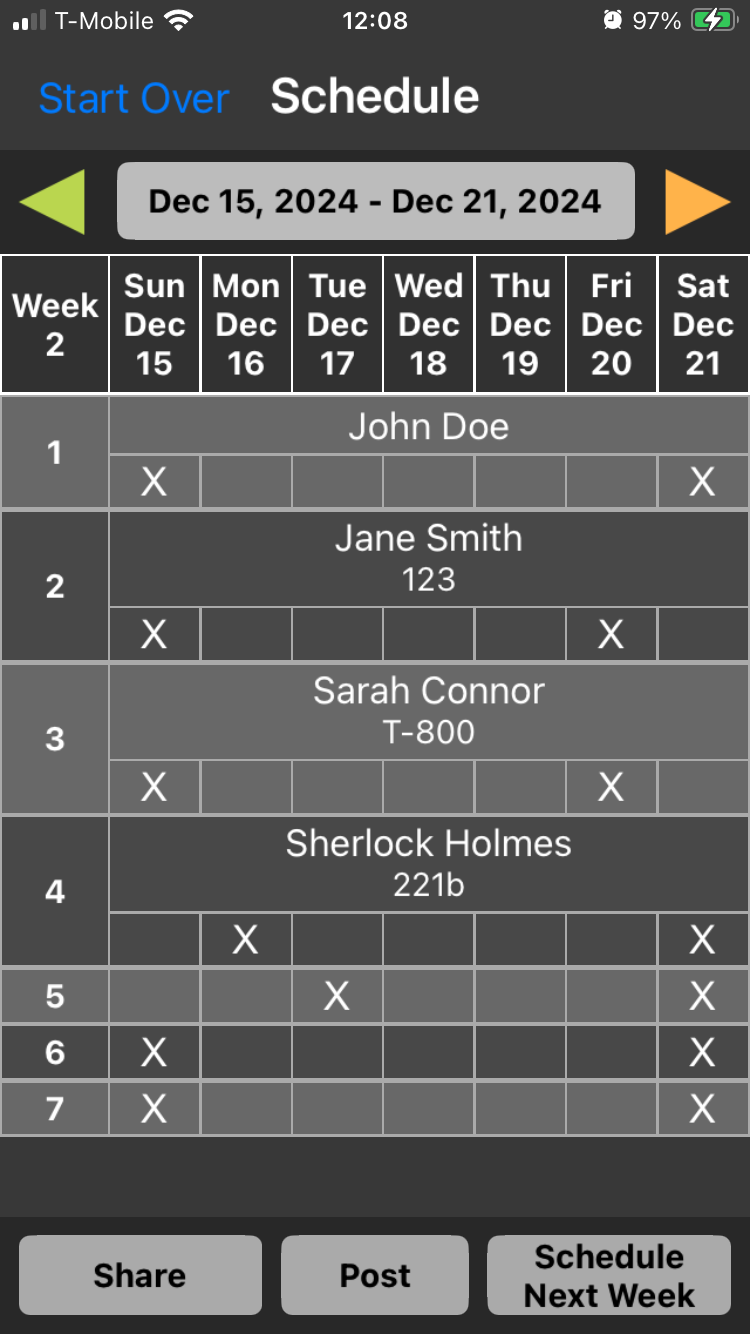
The algorithm generates a schedule one week at a time: once the schedule for the first week is set, the schedule for the next week is determined. You can navigate between scheduled weeks back and forth and also set the dates. A date is set by selecting any day within a given week, and the date button at the top will display the starting and ending dates of that week.
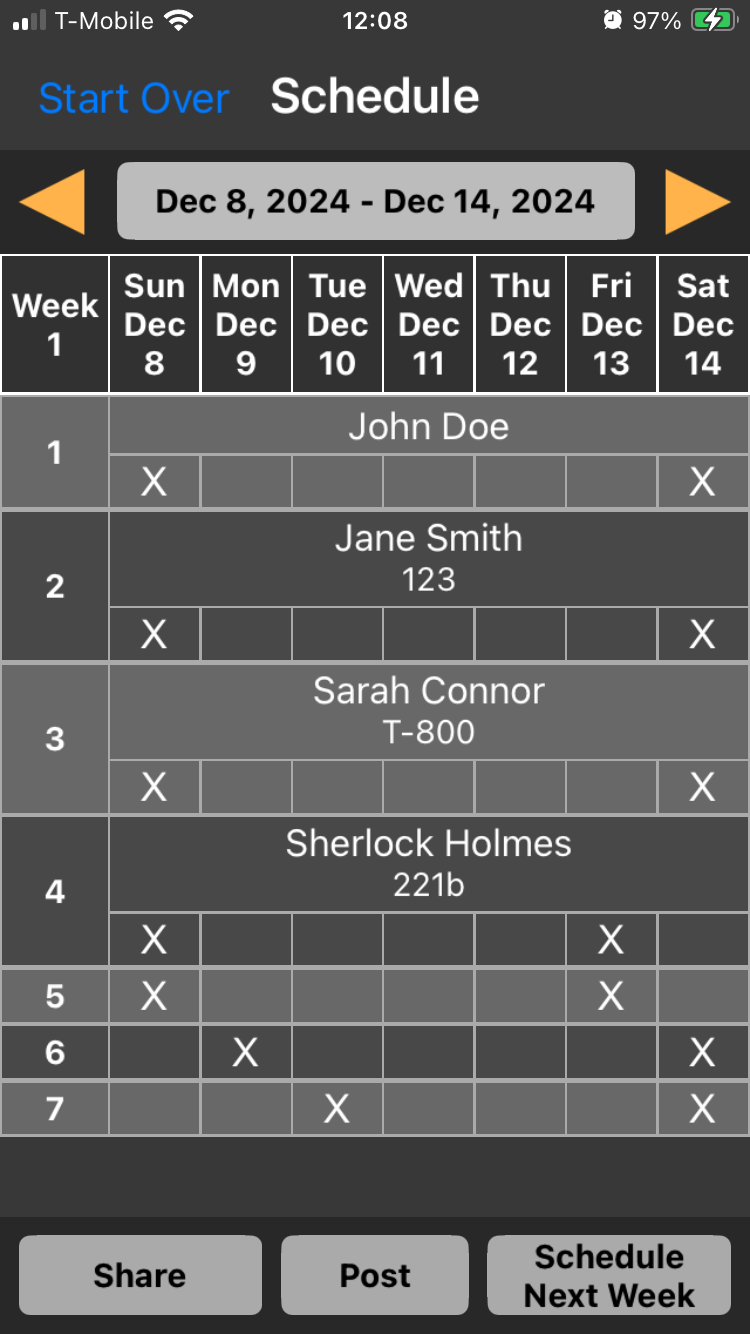
Press the 'Schedule First Week' button to generate a schedule for the first week. The schedule will be generated and displayed on the 'Schedule' view. You can then press the 'Schedule Next Week' button to generate the schedule for the following week.
The number of rows in the schedule corresponds to the number of employees. Each row is assigned an auto-generated incremental number associated with an employee. Employees can be imported from a comma-separated values (CSV) file or entered manually. If no employees are imported or entered manually, the schedule will not show any employees. Strictly speaking, entering employees is not required for schedule generation. If employees are entered, the schedule will display as many of them as there are rows in the schedule. If fewer employees are entered than the number of rows, only the available employees will be displayed. For example, if 10 employees are entered and the schedule generates 8 rows, only the first 8 employees will be displayed. Conversely, if the schedule generates 15 rows but only 10 employees are entered, all 10 employees will be displayed, and the remaining 5 rows will show schedules without employee details.
Employee management is minimal and not the primary function of this app. You can enter only the first name, last name, and an optional identifier for each employee. This can be done by tapping the 'Employees' button on the 'Requirements' view. From there, you can either import employees by tapping the 'Import Employees' button or add an employee manually by tapping the 'New Employee' button.
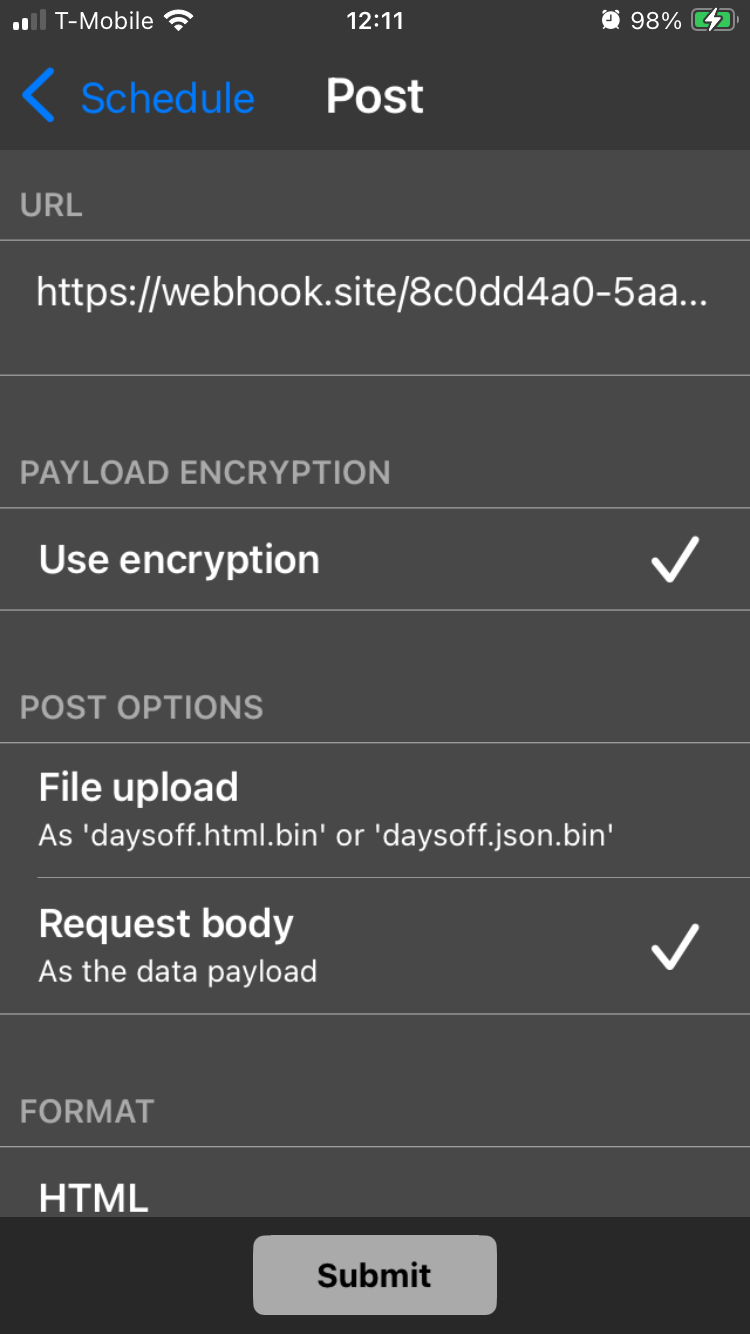
The schedule can be shared or posted to a URL for back-end integration purposes. This can be done by tapping the 'Share' button or the 'Post' button on the 'Schedule' view, respectively. When posting schedules, the app offers an option to encrypt data using a hybrid encryption mechanism: symmetric AES encryption is used to encrypt the data payload, and asymmetric RSA encryption is used to encrypt the encryption keys. Encryption enhances the security of your data by protecting it during transmission and requires the user to provide a public key for the receiving server.
If you choose not to use encryption, the data will be sent in plain text, which may be vulnerable to interception or unauthorized access. You are fully responsible for ensuring the security of the data when encryption is disabled.
You must generate public and private RSA encryption keys and manage them independently. The app stores only the public key. We provide a simple web-based tool for generating RSA key pairs (public and private keys) using JavaScript on our website. This tool can be very helpful for testing and simplifies the process for users who may not be familiar with command-line tools like OpenSSL. Please refer to our website for details on Back-end Integration.
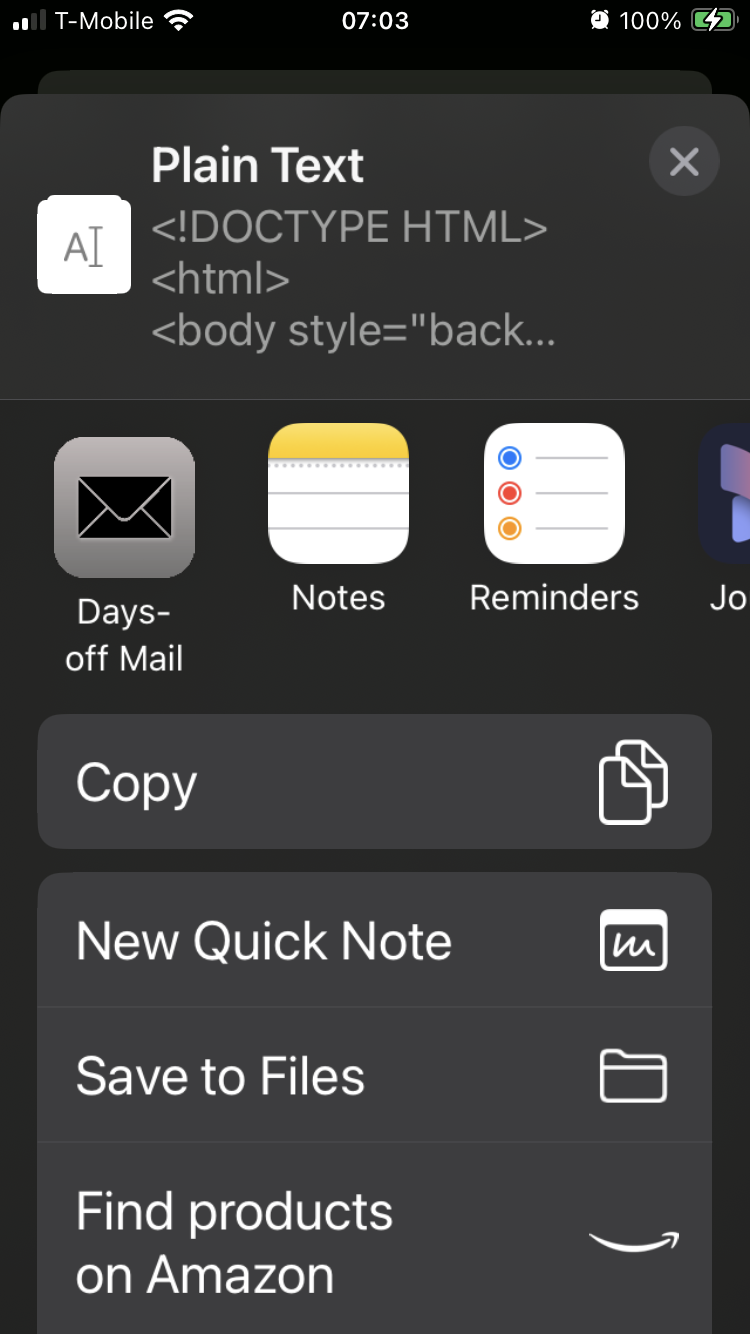
Currently, we do not provide an option to encrypt data when the schedule is shared. For sharing via email, the app includes a custom mail activity called 'Days-Off Mail', which the user can select from the list when the 'Share' button is tapped. The 'Days-Off Mail' activity pre-fills the 'Title' and 'Subject' fields with the scheduled dates for convenience.
When posting the schedule, the first thing you need to do is enter the URL on the 'Post' view. The 'Post' view also offers several options described below.
You can enable or disable encryption.
The schedule can be uploaded as a file or sent in the body of the request to a URL in one of two formats: HTML or JSON. The HTML options include:
-
Include HTML and BODY tags
-
Include CSS
-
Inline CSS
The JSON can be sent in either compact or pretty-printed format.
An authentication option is also available: currently, only basic authentication (username and password) is supported.
If you want to test posting to a URL, one service you can use is https://webhook.site.
'Webhook.site' provides a unique URL where you can send HTTP requests and inspect the data that was posted.
Example Usage:
POST your data to this URL, and you can view the request and response details.
Current app limits
With the valid subscription, the maximum daily demand (number of employees per day) is set to 1000 (for Tier 3).
The maximum number of weekends off is set to 10, regardless of the subscription status. However, this is not practical for many scheduling scenarios, as a reasonable maximum will typically be lower for most schedules.
With these limits, the maximum number of employees required to cover a 7-day operation would be 10,000 (for Tier 3), which should be more than sufficient to meet the needs of most companies.
If the user is not subscribed, the maximum daily demand (number of employees per day) is set to 10. In this case, the maximum number of employees required to cover a 7-day operation would be 100.